A prompt that doesn't change your face does three things: it calls the job an edit, it names the one thing that changes, and it lists your features one by one as off-limits. "Don't change my face" on its own gives ChatGPT or Gemini nothing to check its work against. Paste the face lock below under any prompt, including one you copied from a trend, upload your original photo for every attempt, and compare the result before you post it.
Change Your Hair, Keep Your FaceYou found a prompt that turns a selfie into a studio portrait, a film still, a snow scene. You pasted it, added your photo, and the person who came back has your clothes, your pose, and somebody else's nose. It happens in ChatGPT and in Gemini, and it happens most with prompts that go viral, because those are written to produce a striking picture and say nothing about who is in it.
The prompts on this page are written the other way round, with the face first and the effect second. There is one paragraph you can add to any prompt you already like, then full prompts for the edits people ask for most, from clearing up an old photo to swapping a background. If the only thing you want to change is your hair, there's a shorter route near the end.
The Face Lock: One Paragraph for Any Prompt
Copy this and paste it as the last paragraph of whatever prompt you're using. It needs no editing.
"This is an edit of my photo, not a new image. The person stays exactly as photographed: the same face shape, eyes, eyebrows, nose, lips, jawline, and ears, the same skin tone and skin texture, the same age and expression, the same moles, freckles, and scars, and the same hairline, hair, and facial hair. Do not beautify, slim, smooth, brighten the skin, or make the face more symmetrical. If part of the request can't be done without redrawing the face, leave that part of the photo as it is."
Three notes on using it:
- Delete what conflicts. If your prompt asks for a smile, take "expression" out of the lock. If it asks for a new hairstyle, take out "hair". A lock that contradicts the request gets ignored as a whole.
- Strip the trend prompt first. Viral prompts often carry phrases like "flawless skin", "sharp jawline", or "a 25-year-old model". Each one is an instruction to change your face. Remove them before you add the lock.
- Upload the original every time. Each result is a copy, and a copy of a copy moves further from you. Start a new chat with your real photo when you want another attempt.
Why "Don't Change My Face" Isn't Enough
Neither chatbot opens your photo and adjusts it the way an editing app does. Each one produces a fresh image that is supposed to match yours plus the change you asked for. Your face is something it has to reproduce, and a five-word instruction fails at that for three reasons:
- It's vague. To you, "my face" means the exact width of your nose and the mole by your lip. To the model it can mean a general resemblance. A named list of features is something it can match item by item.
- It's outnumbered. A typical style prompt spends sixty words on lens, light, wardrobe, and mood, and four on your face. The model weighs what it's given, and most of it is about the picture.
- It has no fallback. When the request and the lock pull in different directions, the model resolves it in favor of the picture. The last sentence of the face lock tells it what to do instead: leave that part alone.
How much is at stake depends on the edit. The more of the image an edit touches, the more of you gets redrawn with it:
| Edit | Risk to your face | What moves |
|---|---|---|
| Remove an object | Low | Nothing, unless the object overlapped you |
| New background | Low to medium | Skin color, when you're re-lit to match the scene |
| New outfit | Medium | Neck, jawline, shoulders |
| Sharpen or upscale | Medium to high | Skin texture, eyes, teeth |
| Brighten a dark face | High | Skin tone, and any feature that was in shadow |
| Restore an old photo | High | Whatever the damage hid |
| Film or studio look | High | Everything, since the whole image is re-rendered |
| Headshot from a selfie | Very high | Head angle, and with it the whole face |
Copy-Paste Prompts by Edit
Each prompt below has the lock built in and tuned for that job, so you don't need to add the paragraph above. Fill in the brackets and upload your photo with it.
Make an Old Photo Clear
For scans and faded prints. Restoration is where faces get replaced most often, because the model fills missing detail with a face it finds plausible. The fix is to tell it what to do where it can't see.
"Restore this old photo. This is a repair of the original, not a new image.
Fix: scratches, dust, creases, stains, fading, and blur.
Rebuild detail only where the original shows it. Where a feature is too damaged to read, keep it soft. Do not invent eyes, teeth, or skin detail.
Do not touch: each person's face shape, features, age, expression, hairline, and hair. Keep the original grain, the [black and white / original colors], the clothing, the framing, and the crop."
Watch for: the eyes and the teeth. They are the first things a model sharpens into someone else's. If you also want the photo colorized, do it as a second request on the restored result, with the same lock.
Brighten a Dark or Backlit Face
For photos taken against a window, at night, or under a cap. The model can't see into deep shadow any better than you can, so it guesses what's there.
"Edit my photo: my face is underexposed. Raise the exposure on my face and neck until the features are clearly visible, and match the result to the light already in the scene.
Lift only what is already in the photo. Do not redraw or reshape any feature that comes out of the shadow.
Keep my real skin tone. Brighter, not lighter: no whitening, no smoothing, no added makeup.
Background, clothing, pose, and crop stay exactly the same."
Watch for: skin tone. "Brighten" is often read as "lighten the skin", which is why the prompt separates the two. If one side of the face is fully black in the original, expect that side to stay softer.
Sharpen a Blurry or Low-Resolution Photo
For screenshots, zoomed-in crops, and photos sent through three chat apps. Upscaling adds pixels, and every added pixel is a decision the model makes about your face.
"Sharpen and upscale this photo. Add resolution, not new features.
Keep every proportion exactly where it is: the distance between my eyes, the width of my nose, the shape of my lips, the line of my jaw.
Keep natural skin texture, including pores, lines, and marks. No smoothing, no added makeup, no whiter teeth.
Same framing, colors, and lighting. If an area is too blurry to recover, leave it slightly soft."
Watch for: the plastic look. Poreless skin and razor-sharp lashes mean the model painted a new face at high resolution. A slightly soft real face is the better result.
Change the Background
The safest edit on this page, as long as you stop the model from relighting you to suit the new scene.
"Edit my photo: replace only the background with [a quiet beach at golden hour].
I stay exactly as photographed: face, skin tone, hair, expression, pose, clothes, and my size and position in the frame.
Match the new background to the light already on me. Do not re-light or recolor my face to fit the scene.
Keep the edges of my hair natural, with the stray strands."
Watch for: your skin picking up the color of the new scene, and a hard cut-out line around the hair. Choosing a background with light from the same direction as your photo helps with both.
Change the Outfit
A new outfit means redrawing the neck, shoulders, and often the jaw where the collar meets it. Tell the model where the edit stops.
"Edit my photo: change only my clothing to [a navy blazer over a white crew-neck t-shirt].
The edit stops at my collar line. Everything above it is untouched: face, jawline, neck, skin tone, expression, hair, and facial hair.
Keep my body shape, shoulder width, pose, and proportions. Do not slim or reshape me.
Same background, lighting, and crop."
Watch for: a longer neck or narrower shoulders. To keep the outfit and change something else instead, flip the lock: "my outfit also stays exactly as it is: every garment, its color, pattern, fit, and logos, plus jewelry and glasses."
A Professional Headshot From a Selfie
The riskiest edit here. Headshot prompts usually ask for a new pose, a new angle, and studio light all at once, and a new angle is a new face. Keep your own angle and change what surrounds it.
"Edit my selfie into a professional headshot. Keep my head at the same angle and the same expression as in the photo.
Change only: the background, to [a plain light-gray studio backdrop], the clothing, to [a dark blazer], and the lighting, to soft, even studio light.
Do not change: my face shape, features, skin tone and texture, age, hairline, hair, or facial hair. No retouching, no slimming, no whitening of teeth or eyes.
Crop from mid-chest up."
Watch for: a head that turned to face the camera. If it did, the face was rebuilt from scratch. A selfie taken straight on, at eye level, gives the model the least to change.
A Film, Digicam, or Studio Look
For the camera-style trends: a compact digital camera with flash, a film still, a magazine cover. Style prompts re-render the whole image, so describe the look as a treatment laid over your photo.
"Apply this look to my photo as a color and texture treatment: [a 2000s compact digital camera with direct flash, slightly overexposed, cool tones, light grain].
Treat it like a filter: change color, contrast, grain, and flash falloff only.
The person, the pose, the clothing, and the composition stay exactly as they are. Do not redraw the face to suit the style, and do not smooth the skin."
Watch for: a face that fits the era better than yours does. If you copied the style description from a trend, delete any words in it that describe a person, such as "model", "flawless skin", or an age.
Remove Something From the Photo
For a stranger in the background, a lamp post, a stain on a shirt. Small removals are safe. They go wrong when the object touches you.
"Edit my photo: remove [the person standing behind my left shoulder] and fill the space with the background that is already around it.
Change nothing else. Every other part of the photo stays as it is, including me: face, hair, body, clothing, and position.
Same crop, same colors, same lighting."
Watch for: anything that overlapped your face, like a hand, a microphone, or sunglasses. Removing it means inventing the part of you it covered, so pick a photo where your face is clear.
Two or More People
With several faces in the frame, models tend to blend them toward each other or lock one and reinvent the rest. Number the people and lock them one by one.
"This photo has [two] people. Edit it: [replace the background with a snowy street at night].
Person 1 is [on the left, in the red coat]. Person 2 is [on the right, with glasses].
Each person keeps their own face, skin tone, age, expression, hair, and clothing, exactly as photographed. Do not blend their features, and do not make them look more alike.
Same positions, same heights, same distance between them."
Watch for: the smaller face. The person further from the camera has fewer pixels and gets reinvented first. A photo where every face is large and sharp holds up far better than a wide shot.
If the Face Already Changed
The instinct is to reply "no, keep my face the same". It rarely works, because the model now edits the drifted picture, and your real face isn't in it any more. Go back to the original instead, and tell it what went wrong:
"I'm uploading my original photo again. Your last result changed my [nose and jawline] and smoothed my skin.
Redo the edit from this original: [replace the background with a quiet beach at golden hour].
This time, [my nose and jawline] must match the original exactly, and my skin keeps its real texture. Everything else about me stays as photographed."
Naming the feature that moved matters more than repeating the whole lock. If the same edit fails three times from a clean start, the photo is usually the problem. A face that is small in the frame, turned to the side, or half covered gives the model too little to hold on to.
Five Habits That Do More Than Wording
Use a Photo Where Your Face Is Large
Your face should fill at least a third of the frame. In a full-body shot it's a few hundred pixels, and the model rebuilds it from very little.
Send the Unfiltered Original
Beauty filters and heavy compression have already changed your face once. An edit on top of them drifts from a starting point that wasn't you.
Ask for One Change per Message
Background, outfit, and lighting in one request hands over most of the image. Do them as three edits, each from the original, and keep the one you need.
Keep the Same Shape and Crop
Asking for a square image from a tall photo forces a new composition. Ask for the same aspect ratio and crop it yourself afterwards.
Compare Before You Post
Put the original and the result at the same size and flip between them. Our guide to AI that doesn't change your face has a one-minute check with the five points to watch.
When the Edit Is Your Hair, Skip the Prompt
Hair is the hardest edit to lock, because it sits on the edge of everything you're trying to protect: forehead, temples, ears, jaw. It's also the edit where a drifted face costs the most, since a haircut preview only helps if the person wearing it is you. Glancely is our app, and its try-on was built for this one job. You don't write a lock, because the lock is how it works.
A Face-Lock Prompt in a Chatbot
- You write the list of what must stay
- The model redraws the photo and tries to match it
- Your hair's thickness and curl are easy to lose
- You check every result yourself
Glancely's Try-On
- Only the hair changes, by design
- Face, skin tone, age, expression, eyebrows, and facial hair stay as photographed
- The new cut is built from your own color, texture, density, and hairline
- Pose, lighting, and crop hold, so before and after line up
It also knows whose face it's keeping. Before it recommends a cut, the Glancely Analysis maps 76 landmarks on your face, on your phone, and measures the proportions between them: forehead, cheekbone, and jaw widths, face length, and the angle of your chin. From those it gives your face shape as a primary shape with a secondary blend, reads your hair on the 1A–4C curl scale along with its density and strand thickness, and reads your skin undertone as warm, cool, neutral, or olive. Every cut and color it suggests comes with a fit score and the reason behind it, and you can put any of them on your own photo, or bring a reference photo of a cut you've seen.
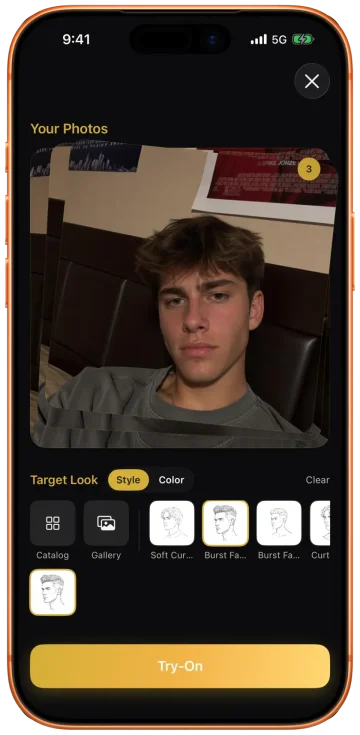
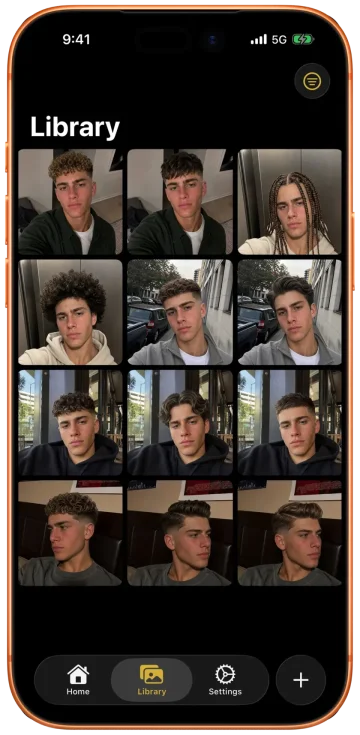
If you'd still like to do hair in a chatbot, the wording is different enough to need its own page: see the ChatGPT prompts for hairstyles or the Gemini prompts for hairstyles.
Questions People Ask
What is a prompt that doesn't change your face?
It is a prompt that treats your face as a list instead of a word. Say the job is an edit of your photo, name the one thing that changes, then lock the features by name: face shape, eyes, eyebrows, nose, lips, jawline, skin tone and texture, age, expression, moles and freckles, hairline, hair, and facial hair. Add that nothing should be beautified or smoothed, and that anything it can't do without redrawing the face should be left alone.
Why does ChatGPT keep changing my face?
ChatGPT doesn't retouch your file. It produces a new image meant to match your photo plus your request, so your face is something it has to reproduce. A short instruction like 'keep my face' gives it nothing specific to match, and a long prompt about lighting and mood outweighs it. Naming each feature, asking for one change at a time, and starting again from the original photo all reduce the drift.
What is the best ChatGPT prompt for photo editing without changing the face?
Use three lines. First: 'This is an edit of my photo, not a new image.' Second: the single change you want, such as a new background or brighter lighting. Third: a lock that names your features, skin, age, expression, hairline, hair, and facial hair, and bans beautifying and smoothing. Keep pose, crop, and aspect ratio in the lock unless the edit needs them to move.
How do I make an old photo clear without changing the face?
Ask for repair, not improvement. Tell the model to remove scratches, dust, fading, and blur, and to rebuild detail only where the original shows it. Then say that where a feature is too damaged to read, it should stay soft instead of being invented. Keep the grain and the original colors or black and white unless you ask for colorizing as a separate step.
Does a face lock prompt work in Gemini?
Yes. The face lock is plain language, so it works in Gemini, ChatGPT, and any other chatbot that edits an uploaded photo. In all of them, upload the original for every attempt, change one thing per message, and compare the result with your photo before you use it.
How do I keep my face and outfit the same in an AI edit?
Extend the lock to the clothes. After the face list, add: 'My outfit also stays exactly as it is: every garment, its color, pattern, fit, and logos, plus jewelry and glasses.' Then name the one thing that does change, such as the background or the lighting. The more of the photo you lock, the less the model has to redraw.
Is there an app that changes your hair without changing your face?
Yes. Glancely's try-on changes only the hair. Your face, skin tone, age, expression, eyebrows, and facial hair stay as photographed, along with your hair's own color, texture, density, and hairline, and the pose, lighting, and crop of the photo. Glancely is free to download on iOS.
Bottom Line
A chatbot keeps your face when the prompt gives it something exact to keep. Name the features, name the one change, tell it what to do when the two collide, and start from your original photo each time. The face lock covers most edits. The riskier ones, like restoring an old photo or making a headshot, need the fuller prompts above.
For hair, the lock is already built. Glancely changes the cut or the color and leaves the person alone, and it's free to download on iOS.
New Hair. Same Face.
One selfie. Glancely measures your face shape, reads your hair and undertone, and shows the cuts and colors that fit on your own photo, with only the hair changed. Free to download on iOS.
Download Glancely